> ## Documentation Index
> Fetch the complete documentation index at: https://docs.bsy.sh/llms.txt
> Use this file to discover all available pages before exploring further.
# API Keys
> Learn how to get your Bitsy API key.
API keys on Bitsy allow other apps to access your workspace programmatically. This is useful for integrating Bitsy with other tools and services.
Bitsy API keys are prefixed with `bsy_` for easy identification.
## API Key Permissions
You can create 4 types of permissions for your Bitsy API keys:
1. **Create** – Allows creation of Bitsy Links, Bitsy Link-in-Bio, Digi Note, and QR Code.
2. **Read** – Grants read access to Bitsy Links, Bitsy Link-in-Bio, Digi Note, and QR Code.
3. **Update** – Permits updating of Bitsy Links, Bitsy Link-in-Bio, Digi Note, and QR Code.
4. **Delete** – Enables deletion of Bitsy Links, Bitsy Link-in-Bio, Digi Note, and QR Code.
Depending on your use case, you might want to use one or more of these options to limit the scope of the API key and improve security.
## How to Create an API Key
You can create an API key by following these steps:
Navigate to **Settings** > **Account** > **Developer API** in your Bitsy workspace.
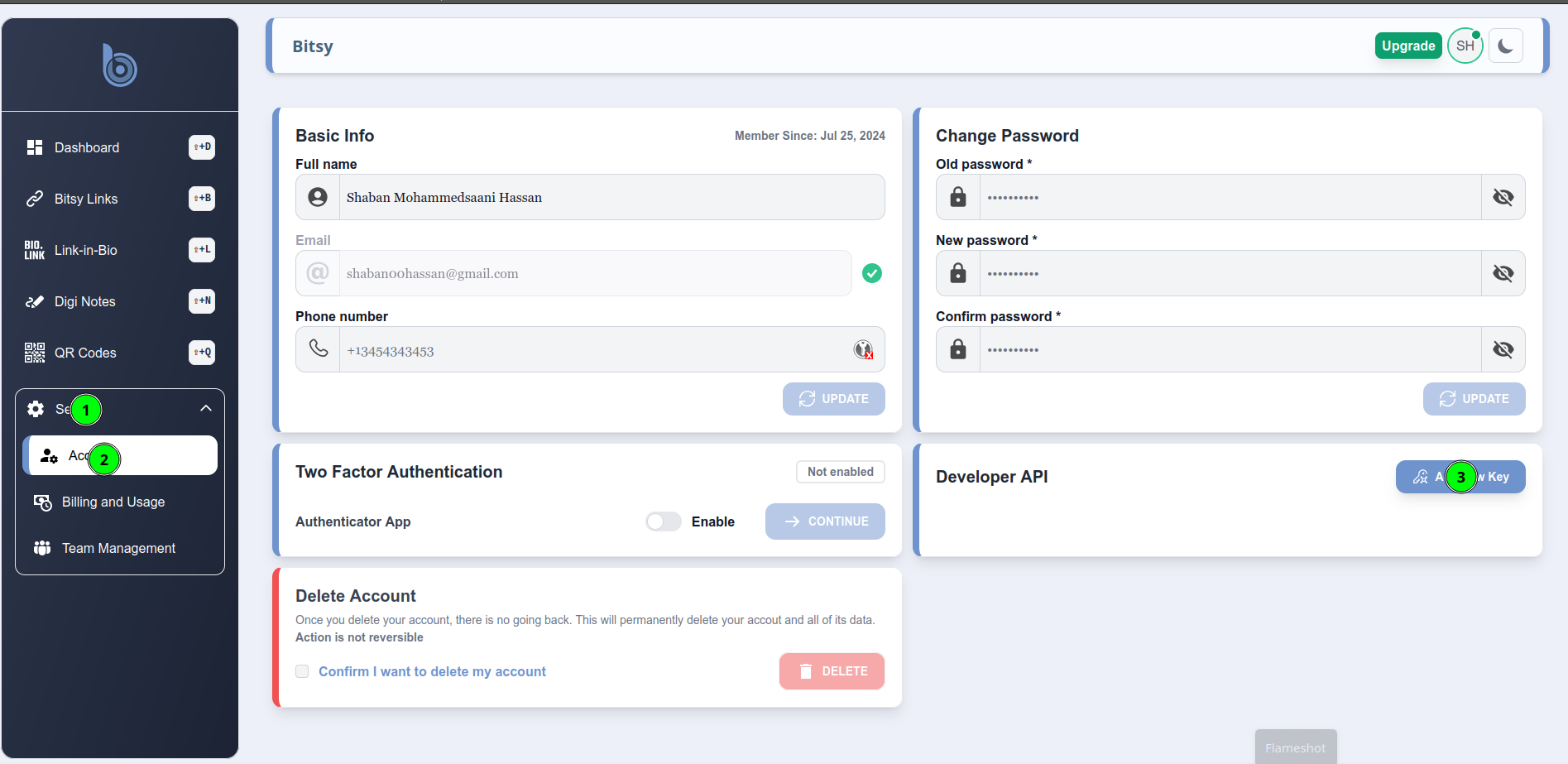 Click on the "Add New Key" button.
Enter a name for your key and select the permissions you want to grant.
Click on the "Add New Key" button.
Enter a name for your key and select the permissions you want to grant.
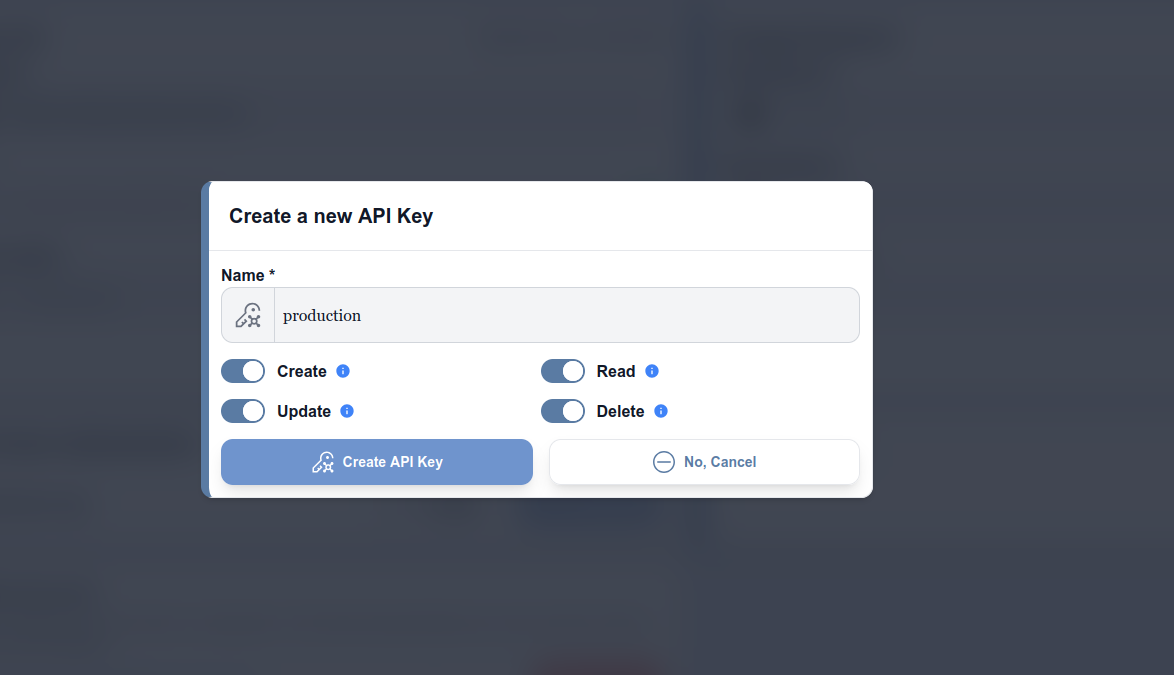 Note: The API key will be shown only once, so make sure to copy and save it in a secure place.
Now that you have your API key, you can use it to access your workspace's resources programmatically via SDKs or within any API request as a bearer token.
```
Authorization: Bearer bsy_xxxx
```
We recommend creating API keys with the least privilege necessary to perform
the required tasks. This helps to reduce the risk of unauthorized access to
your workspace.
Note: The API key will be shown only once, so make sure to copy and save it in a secure place.
Now that you have your API key, you can use it to access your workspace's resources programmatically via SDKs or within any API request as a bearer token.
```
Authorization: Bearer bsy_xxxx
```
We recommend creating API keys with the least privilege necessary to perform
the required tasks. This helps to reduce the risk of unauthorized access to
your workspace.